Syncing Employees (Infor Only)
Once an employee has completed onboarding in TalentReef, they should automatically sync to Datalink, and from there, automatically
sync to the Infor POS system. This process takes at least a few minutes, but if you are missing the employee in Datalink/Infor after 30
minutes, please follow these steps to troubleshoot. If you are still having trouble importing an employee after following these steps,
please contact payroll@datalinkis.com for additional help.
1. From TalentReef to Datalink
The first thing to confirm is if the employee has completed onboarding in TalentReef. To be marked as completed in TalentReef, an
employee must complete four main requirements: their I-9, their W-4, all assigned forms under the Forms tab, and have their Employee
Details verified by a manager. Once all of these are completed, the employee should automatically be marked as complete, and their
information should be sent to Datalink.

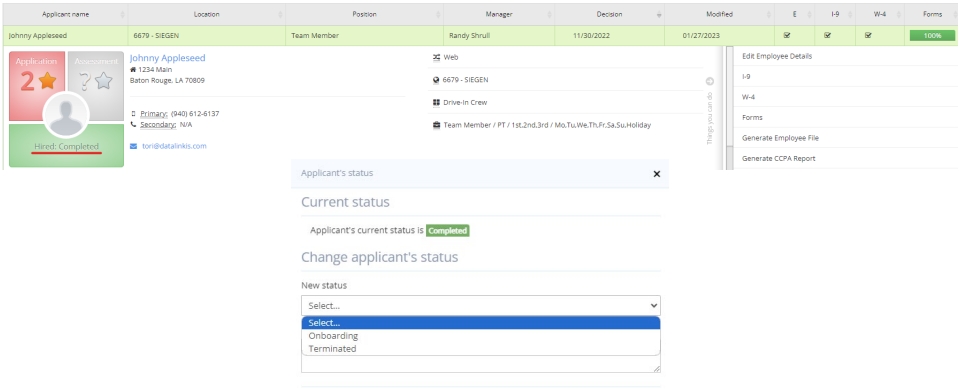
If an employee has been marked as completed, but is not in Datalink, click on the green “Hired: Completed” button and change the
applicant’s status to Onboarding, then back to Completed. This should trigger the file to generate and will bring them into Datalink.
2. From Datalink to Infor
If an employee has successfully synced to Datalink, but not Infor, all you will need to do is pull up their Employee Summary screen
and click on the Recreate Infor sync file link under Employee Input. This should send a new file to Infor containing the employee’s
information within a few minutes.

Once you have allowed some time for the file to process from Datalink to Infor, press the Sync with Eight button on your POS
system to try bringing in the employee again. If the employee is still not coming into the POS system or you have any other questions,
please contact payroll@datalinkis.com