How to Add Uniform Deductions
First, go to the Data Link website, and pull up the Employee Summary of the employee who will need a
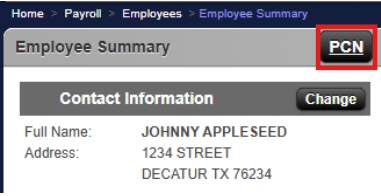
uniform deduction added to their paycheck. Once you are at the Employee Summary screen, click on the PCN buton located above their name.
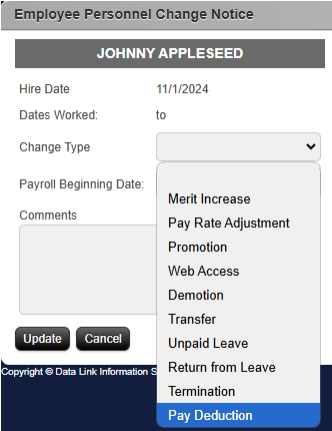
You will then be brought to the Employee Personnel Change Notice page. On the Change Type drop down menu, select the Pay Deduction option.
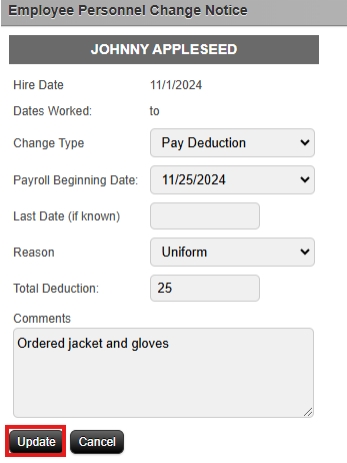
Then, when you go to select the Payroll Beginning Date, the page should automatically update and add
more options to fill in. Select the Payroll Beginning Date for the payroll cycle you would like the
deduction to be added to, then select Uniform for the Reason option, and finally, enter the Total
Deduction amount (this will need to include shipping if you want to charge the employee for part of the
shipping.) You can optionally leave a comment including what the employee ordered, or any other notes
you may have. Once you are done filling out the form, click Update, and the deduction will automatically
be added to the payroll you selected.
If you would like to verify that the deduction was successfully added to payroll, you can use the Personnel Change History report. You can find
this report on the far-right side of the Employee Summary page, listed under Reports.

You will then be brought to the Personnel Changes screen, and if the deduction was submited correctly, you should see a Pay Deduction record
that includes all the information you entered. If any of the information needs to be corrected, please email payroll@datalinkis.com, and we will make any necessary changes.
